


AI agent permissions define what an agent can access and which actions it can take. On construction project management, that could mean allowing it to read project emails while requiring approval before sending a reply. This article explains how to set those boundaries, including what agents should and shouldn’t access and when human approval is needed.
What Are AI Agent Permissions?
AI agent permissions are rules that control an agent’s access to information and its authority to perform tasks. They define the boundaries within which it can work, even when it chooses its own steps to complete an assignment.
Project management teams need to consider four parts of that control:
- Data and tool access: Which project files, mailboxes, and connected systems the agent can use.
- Allowed actions: Whether it can read information, create documents, edit records, or send messages.
- Approval requirements: Which actions need a person’s confirmation before the agent proceeds.
- User and administrator access: Who can use the agent and who can change its settings.
These permissions can be set separately. For example, an agent reviewing a payment application might read the supporting invoices and prepare findings. Approving the payment would require separate authority.
Permissions are one part of AI agent readiness. An AI readiness checklist covers them alongside data, governance, and security.
What Are Examples of AI Agent Permissions?
The table below illustrates permissions that may be configured for project management tasks. It does not represent a standard set of settings available in every platform.
How Do AI Agent Permissions Work?
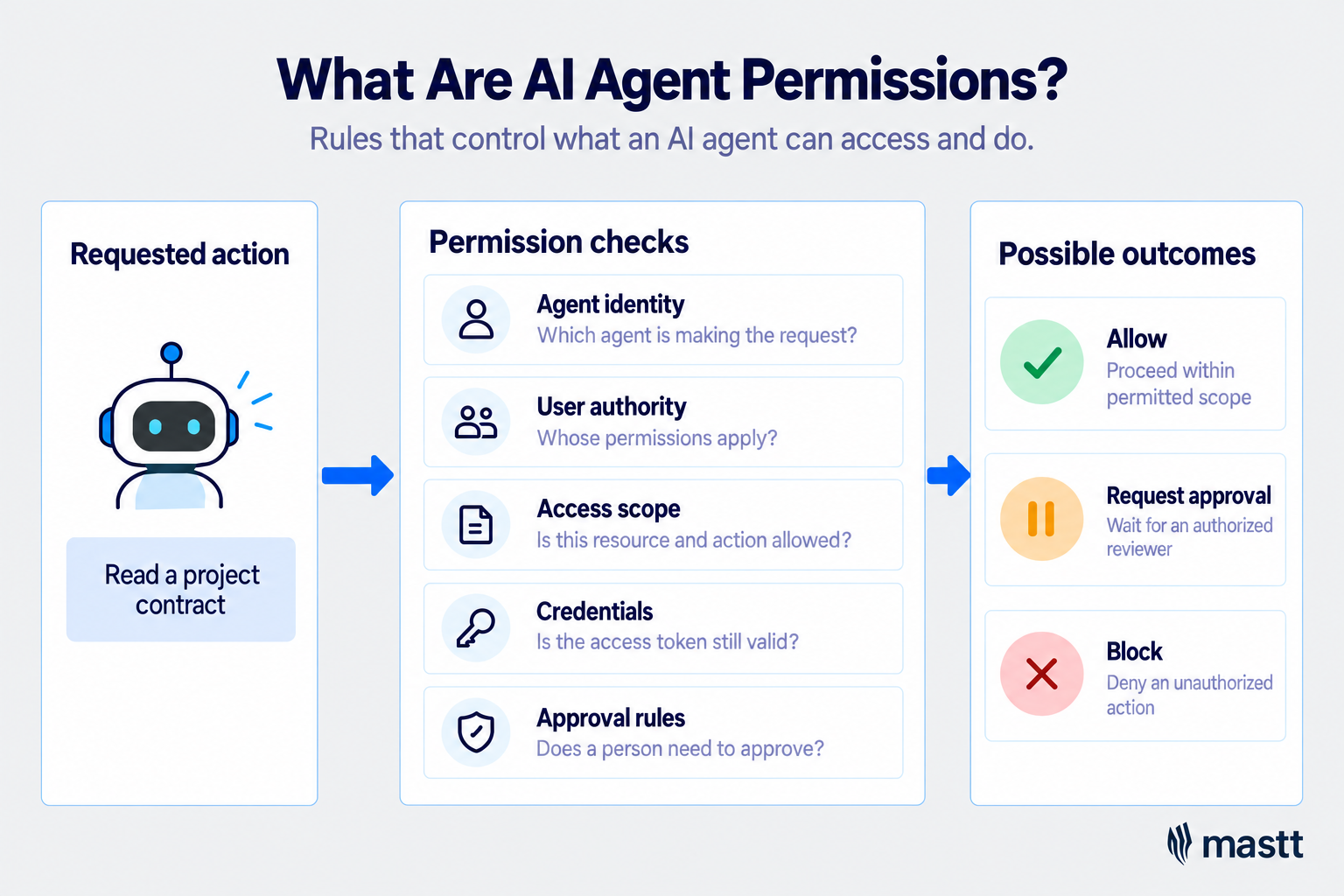
AI agent permissions work through layers of access control that identify the agent, limit its authority, and check actions before they run. These controls are enforced by the agent platform and connected systems, with human approval required for designated actions.
The following controls work together:
- Agent identity: A dedicated identity lets systems recognize the agent, apply its permissions, and trace its activity. It also helps distinguish the agent’s actions from those performed directly by a person.
- Delegated access: When an agent acts on someone’s behalf, effective access should stay within both the user’s permissions and the agent’s approved scope. A user’s ability to open a record does not automatically authorize the agent to access it, and the agent’s connection should not bypass the user’s restrictions.
- Granular scopes: Permissions define specific resources and operations, such as reading a project’s contract folder or creating calendar invitations. Permission to read information does not automatically permit editing, deleting, or sending it.
- Short-lived credentials: Temporary access tokens expire after a defined period. Continued access requires a valid replacement, so removing access also means addressing the underlying permission that allows new tokens to be issued.
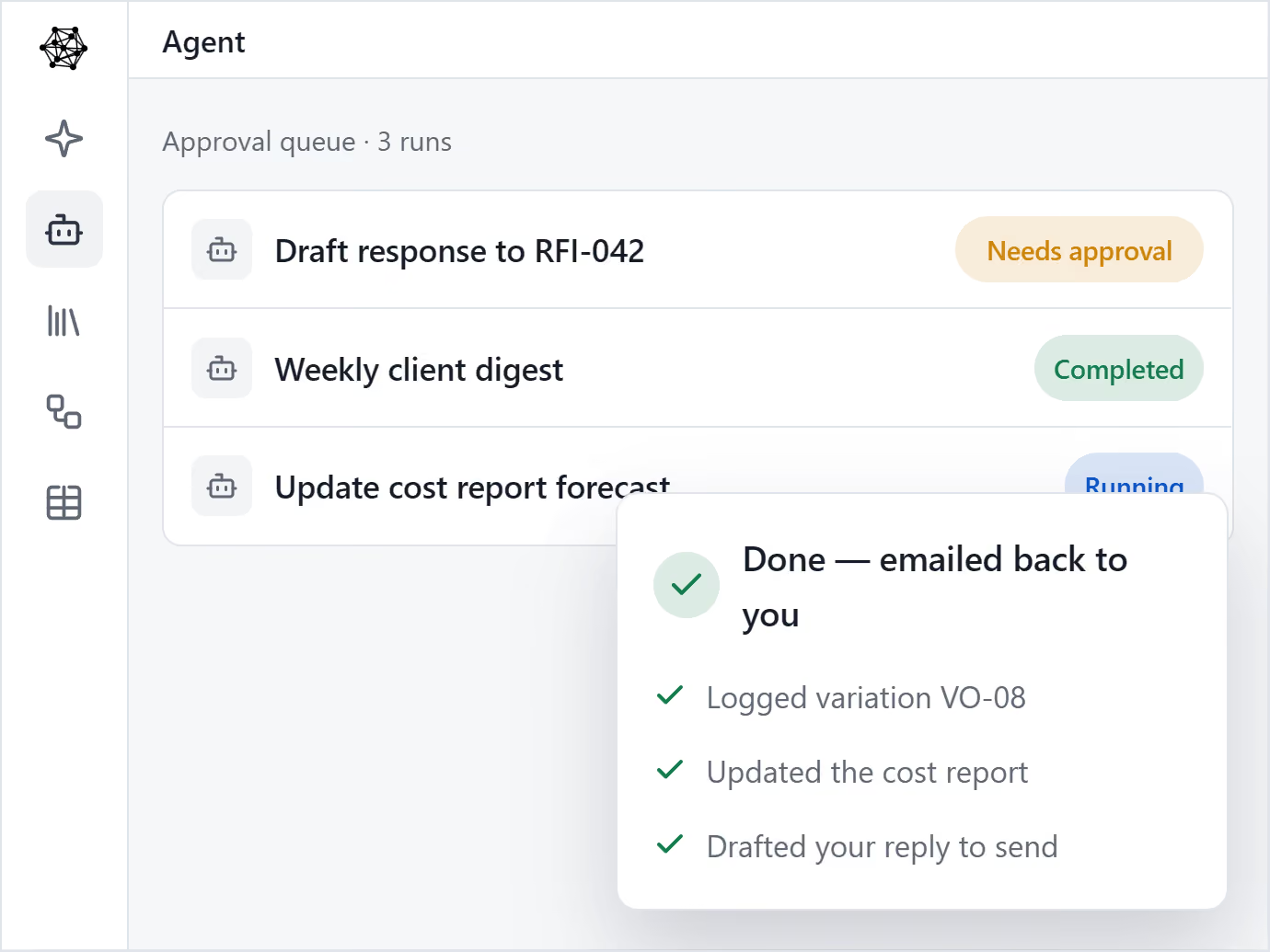
- Runtime checks and approvals: Before a tool runs, software checks the requested action against applicable permissions and approval rules. It can allow the action, block it, or hold it for an authorized person’s confirmation.
In Mastt AI Agent, for example, an email sender must pass email authentication and already have project access before triggering the agent. This illustrates how identity and access checks determine who can request work.
What Should an AI Agent Be Allowed to Access?
An AI agent should receive only the permissions needed for its assigned task. This is called the principle of least privilege. For example, an agent summarizing a contract may need read-only access to that document, with no permission to edit or delete it.
Depending on the task, an AI agent for construction project management may need access to the following sources:
💡 Pro Tip: Before connecting a contract-monitoring agent, identify the exact mailbox, contract folder, and register it needs. Check the integration’s permission settings to confirm that connecting these sources does not also expose unrelated projects.
What Access Should Stay Restricted for AI Agents?
AI agents should be blocked from information and system functions outside their approved tasks. Restrictions should reflect client confidentiality requirements and the authority of the person requesting the work.
The following areas need explicit restrictions:
- Passwords and secret keys: Keep credentials out of prompts, uploaded documents, and searchable folders. Use approved authentication methods to connect the agent to other systems.
- Administrative controls: Block routine agents from changing user permissions, disabling safeguards, or expanding their own access. Any administrative task needs separate authorization.
- Private employee records: Exclude payroll, personnel files, and private correspondence unless an approved task specifically requires them. Access to project communications should not expose an employee’s entire mailbox.
- Unapproved applications and destinations: Restrict uploads and messages to approved services and recipients. Permission to read a contract should not automatically allow the agent to send it outside the project team.
💡 Pro Tip: Check whether the agent can export or forward restricted information through another connected tool. Folder restrictions alone may not cover copies shared through email or external storage.
How Do You Set Up and Manage AI Agent Permissions?
Setting up AI agent permissions means turning an agreed assignment into controls that the connected systems can enforce. The project team defines what the agent is authorized to do, then works with the people managing those systems to configure and test its access. Once the agent is running, those permissions need to stay aligned with its responsibilities.
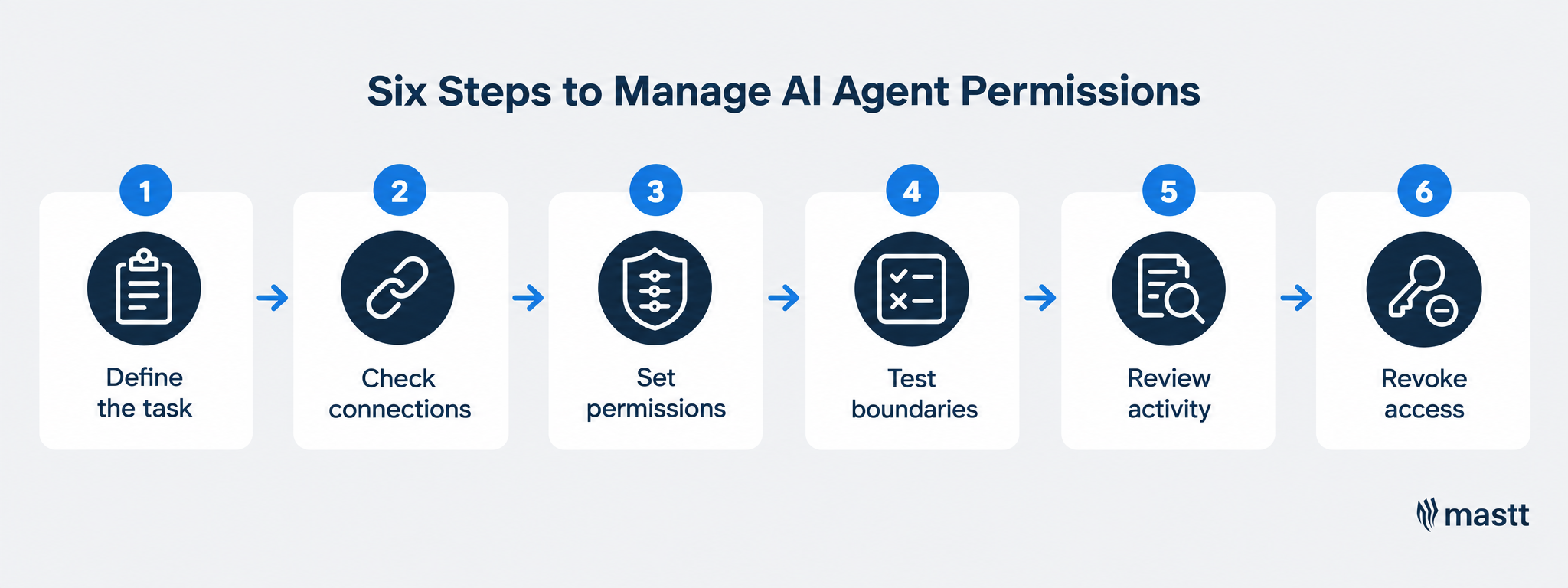
Step 1: Define the task and responsible owner
Before choosing permission settings, establish what the agent will produce and where its responsibility ends. Treat the setup like onboarding a new team member. Explain the assignment, provide the information needed, and identify decisions that require someone else’s authority.
For example, an agent reviewing payment applications may prepare findings for a project manager while leaving payment approval with the authorized approver. That distinction helps determine which permissions it needs.
Before configuring access, record:
- Assignment: What the agent will produce and which project it will support.
- Required information: The documents and systems needed to complete that work.
- Responsible owner: Who will oversee the agent’s work and handle problems.
- Access approver: Who can authorize access to each connected system.
The responsible owner and access approver may be different people. A project manager might oversee the workflow, while the finance system owner approves access to accounting records.
Step 2: Identify connected accounts and permission settings
With the assignment agreed, check which account the agent will use to connect to each system. That account’s permissions affect what the agent can retrieve or change. If a shared agent connects through its creator’s account, it may have access to records that other users cannot normally open.
The person configuring the agent will need help from whoever manages access to the connected application. For Outlook or SharePoint, for instance, this may be your Microsoft 365 administrator or IT provider. For financial integrations, involve the person managing accounting-system permissions.
Together, resolve these questions for each connection:
- Connected account: Does the agent use the requesting user’s account, its creator’s account, or a separate identity assigned to the agent?
- Available access: Which records and actions does that connection currently allow?
- User restrictions: How does the system prevent a user from retrieving information beyond their authority through the agent?
- Permission settings: Which controls sit in the agent platform, and which must be changed in the connected application?
If the connection exposes more information than the assignment requires, narrow its permissions or choose a connection method that supports the required restrictions before sharing the agent.
For example, a CFO connects a shared agent to MYOB, but a project manager using that agent has no accounting access. The system should block the project manager’s request for outstanding invoices, even though the CFO’s connection can retrieve them. Before sharing the agent, confirm how the integration enforces that restriction.
💡 Pro Tip: Record the account behind each connection and who can change its permissions. This makes it easier to review or remove access later.
Step 3: Grant specific access and set approval rules
With the connections understood, configure which actions the agent can perform within the approved project scope. Grant reading, editing, and sending permissions separately so access to information does not automatically allow changes or external communication.
The following example shows how a team could configure a document-review workflow:
For approval-required actions, the workflow must prevent execution until the authorized reviewer approves. Missing or rejected approval should leave the action blocked, and changes to the approved details should require another review.
Step 4: Test allowed and prohibited requests
Before rollout, test whether the permissions work across the agent and its connected systems. A successful task shows that the agent has enough access to do its work. Requests outside its assignment help reveal whether the restrictions hold.
Use sample records and accounts with different access levels to check the following:
- Approved task: The agent completes its assignment using permitted records and saves the output in the approved location.
- Restricted information: A user without access cannot retrieve another project’s records or obtain a summary of their contents.
- Protected records: Attempts to edit or delete read-only source documents leave the originals unchanged.
- Missing approval: An action requiring approval remains unexecuted when the reviewer declines or does not respond.
Have the administrator of each connected system check the activity logs alongside these results. A refusal in chat does not prove that restricted information was never retrieved, so the evidence should confirm which records were accessed and whether any changes occurred.
Resolve failed checks before rollout, then introduce one small, low-risk routine task so the team can review its behavior during everyday use.
Step 5: Review activity and adjust permissions
As the agent’s responsibilities change, its permissions may need updating. The responsible owner should review the audit trail to check which records it accessed, what actions it took, and whether required approvals were recorded.
Use those findings to decide what needs attention:
For example, moving from drafting register updates to editing live records requires a new permission decision. Retest the affected controls before enabling that change.
Step 6: Revoke access when it is no longer needed
An assignment ending does not automatically disconnect the agent from project systems. Its scheduled work and connections may remain active, even after employees lose access to the agent itself.
Use the connection record from Step 2 to coordinate removal with the people managing the agent platform and connected applications. This should cover:
- Scheduled and pending work: Stop recurring runs and cancel queued actions.
- Connections and permissions: Remove the agent’s access grants in the relevant systems.
- Credentials and sessions: Revoke those that could allow continued access.
Afterward, test a previously permitted request to confirm that the agent can no longer retrieve the information or perform the action.
💡 Pro Tip: Information the agent has already copied or indexed may be stored separately from the source, so check the platform's retention and deletion settings.

How Do Popular AI Platforms Control Agent Permissions?
Popular AI platforms control agent permissions through tool settings, connected-account access, and approval requirements. The available controls differ by product, so check which settings apply to the agent and connection you use.
The following table shows how these platforms manage access and actions:
What Happens When an AI Agent Has Too Much Access?
Excessive AI agent permissions increase the damage an error or malicious instruction can cause. An agent with unnecessary access may expose confidential information, change project records, or send messages beyond its assigned authority. When that access spans several projects, a single mistake can affect work outside the original task.
For project management teams, the risks include:
Prompt injection matters because agents often read material supplied by external parties. That material can contain instructions disguised as part of the task. Permission controls should limit what the agent can do even if it follows those instructions, while approval checkpoints provide another opportunity to catch an unauthorized action.
AI Agent Permissions Best Practices
Day-to-day use can reveal gaps that initial permission tests miss. Use these practices to catch misunderstandings and contain mistakes during live work:
- Review an early task with the agent’s owner. Check the source documents and actions taken, even when the final answer looks correct.
- Turn corrections into specific instructions. Explain, for example, which emails authorize register updates and which require the contract administrator’s review.
- Establish what happens when information is missing or contradictory. The agent should flag the issue for a named reviewer before changing records.
- Check the sharing settings of generated files. A bid comparison saved in a general project folder could expose pricing from restricted source documents.
- Where supported, cap the number of records changed per run. Require review before continuing a bulk update so one misunderstanding cannot affect the entire register.
- Give employees an approved way to process confidential outputs further. Copying them into a personal chatbot can create shadow AI risks outside the original agent’s controls.
When an agent makes a mistake, check whether the cause was unclear instructions, missing context, or excessive access. Each needs a different response. Correct the cause and repeat the affected task before allowing the workflow to continue.
Expand Agent Access One Task at a Time
Start with one small, low-risk task that your team can supervise closely. Use that experience to understand the access the agent needs and whether its approval controls work in practice. As its responsibilities grow, treat each request for additional access as a new decision. Reliable performance on one assignment is a reason to consider the next task, rather than grant broad authority across project systems.
.avif)
Written by
Jamie Cerexhe
A Forbes 30 Under 30 and PMI Future 50 honoree, Jamie Cerexhe is Mastt's co-founder and Chief Technology Officer. He leads the company's AI engineering, agentic pipelines, and security work, and earlier taught software development and contributed to the UNESCO Digital Skills Toolkit. At Mastt, Jamie contributes articles on AI, agentic workflows, and technology adoption in construction.

.avif)
Contributions by
Doug Vincent
Doug Vincent is the co-founder and CEO of Mastt, the AI capital-project management platform used by governments, Fortune 500 companies, and consultancies across APAC, North America, and MENA. Before founding Mastt in 2019, he spent a decade at RPS delivering more than $2 billion in capital works, including the $2.1B Defence Navy Infrastructure program, and holds a CPSPM certification with the AIPM. He contributes content and speaks on AI in capital project delivery at Mastt.
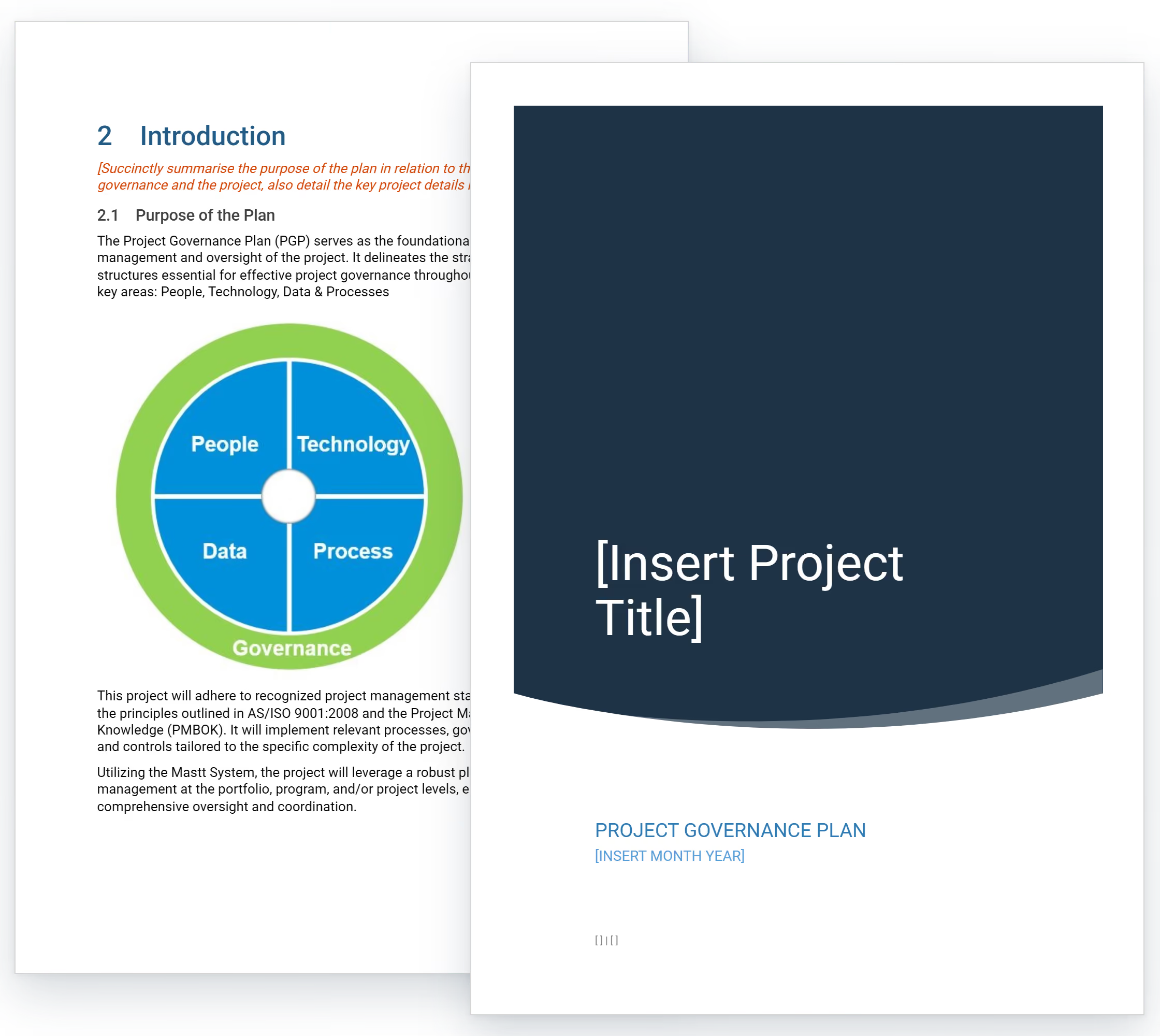
Project Governance Template
Use this FREE project governance template to establish decision authority and prevent scope disputes. Define approval hierarchies, escalation paths, and stakeholder roles before execution begins.

Walk Into Every Meeting With Confidence, Clarity, and Control
No one wants to look unprepared, blindsided, or uncertain in front of stakeholders — but that’s exactly what happens without Mastt.
Start for FreeTrusted by the bold, the brave, and the brilliant across governments, Fortune 500s, and the world’s best in delivering the future